
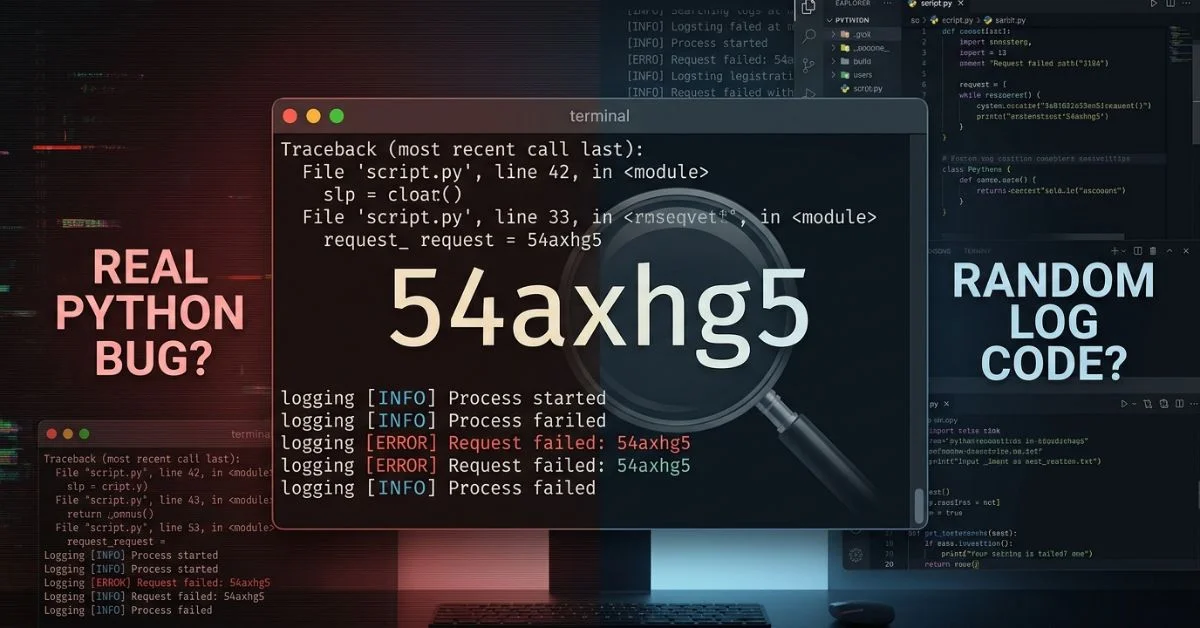
Have you run into the code 54axhg5 while writing Python? Search results show many different answers, which makes it hard to know what is real.
This guide explains what this term actually means. You will learn how to trace where it came from and find the real error in your code.
Python Bug 54axhg5: Quick Answer
python bug 54axhg5 is not an official Python version, built-in error, standard add-on package, or known issue in the CPython source code. There is no proof in official Python records that this code is a real bug in the Python program itself.
If this code shows up on your screen, ignore the code string itself. Instead, look at your full error message logs to fix the problem.
| Question | Answer |
| Official Python version? | No proof found |
| Built-in Python error? | No |
| Standard package or PyPI package? | No |
| Known CPython issue? | Not listed in official issue trackers |
| First step to fix it? | Check full traceback and system logs |
What Is Python Bug 54axhg5? Is It Official?
The text string 54axhg5 is not an official Python part. Official Python tools come from the core CPython project and the Python Software Foundation. Python developers use simple numbers to track issues on GitHub, like gh-105000.
What 54axhg5 Is Not
To avoid confusion, it helps to tell this string apart from real Python parts:
- Python version: Official versions use numbers like 3.11 or 3.12, listed on
python.org. - Built-in error: Real errors use clear names like
TypeErrororFileNotFoundError. - Standard library module: Built-in Python tools include modules like
sysormath. - PyPI package: Searches on the Python Package Index (
pypi.org) show no downloadable package with this name. - Official issue ID: Official bug tracker numbers use simple number formats, not random letters mixed with numbers.
Why Search Results Are Confusing
Search results are confusing because random websites often list made-up strings to get web clicks. Automated tools can also create random build numbers, session IDs, or crash codes.
When many websites copy unverified terms, search engine results show them to users. Unconfirmed claims on random blogs do not make a random string a real Python error.
| Code Type | Example Appearance | Where to Check |
| Python Version | 3.11.4 | Official release notes at python.org |
| Error Type | TypeError: bad operand | Last lines of your error message |
| Package Name | requests | Official library site at pypi.org |
| Issue ID | gh-105000 | CPython source list at [github.com/python/cpython](https://github.com/python/cpython) |
| Internal Code | 54axhg5 | Local app or server log files |
Where Did the 54axhg5 Code Come From?
Random codes like 54axhg5 usually come from outside log systems or automated build tools.
Common origins include:
- App logs: Web servers create random request IDs to track unique user visits.
- Automated test pipelines: Systems like GitHub Actions give build codes to specific test runs.
- Crash tools: Error-tracking tools assign unique codes to crash reports.
- Web scrapers: Automated content creators sometimes print random filler text.
How to Find Where It Came From
To trace where a string started, follow these simple steps:
- Open the full log file where you saw the text.
- Find the line containing 54axhg5.
- Read the log lines right above and below it to find the program name.
- Check if the code is a custom app variable rather than a Python command.
Example 1: Web App Server Log
2026-08-11 10:00:00 [ERROR] Request ID: 54axhg5
Traceback (most recent call last):
  File "app.py", line 12, in <module>
    import non_existent_module
ModuleNotFoundError: No module named 'non_existent_module'
- 54axhg5: Tracking code created by the server.
ModuleNotFoundError: The actual Python error.
Example 2: Extra Package Error Code
CustomFrameworkError: Database connection lost (code=54axhg5)
- This error comes from a custom code library, not Python itself.

How to Find the Real Python Error Behind 54axhg5
When your code fails, ignore random codes and find the real error details.
Read the Full Traceback Message
A traceback is the error report Python prints when a script crashes. It shows the exact path your code took before it stopped working.
The final traceback lines usually show the exact error that stopped the program. Read the full traceback from top to bottom if the main cause is unclear:
- Bottom line: Shows the error name and the main failure message.
- Middle lines: List the exact file names and line numbers where the failure happened.
- Top lines: Show the very first function calls that started running the code.
Check Your Python Version and Setup Path
Different Python versions run code differently. Check your active setup paths using these commands:
Check your active Python version:
Bash
python --version
What it tells you: Confirms the version number currently running.
Check the exact folder location of your Python setup:
Bash
python -c "import sys; print(sys.executable)"
What it tells you: Shows the folder path of the running Python program.
Check full setup details:
Bash
python -c "import sys; print(sys.version)"
What it tells you: Shows the exact compiler and build details.
Compare your sys.executable folder path with your package installer path using python -m pip --version. Both commands must point to the exact same folder.
Check Package and Compatibility Problems
If your code crashes as soon as it starts, a missing or misconfigured code library is often the cause.
Run these commands to check your packages:
Show setup details for one package:
Bash
python -m pip show requests
What it tells you: Lists the installed version, location, and required extra packages.
List all installed libraries in your setup:
Bash
python -m pip freeze
What it tells you: Displays every installed package and its exact version number.
Check for package conflicts:
Bash
python -m pip check
What it tells you: Finds broken or conflicting packages in your current setup.
How to Fix Missing Package Errors
If Python shows an ImportError or ModuleNotFoundError, check these areas:
- Missing package: Install the library into your active setup using
python -m pip install <package_name>. - Wrong setup folder: Check that your terminal uses the exact same virtual setup folder as your code editor.
- Version mismatch: Compare your installed packages against your project’s
requirements.txtorpyproject.tomlfile.
Troubleshoot Based on the Real Problem
Match what your script is doing to this guide table to fix the issue:
| What Your Code Does | First Thing to Check | Likely Problem Area |
ImportError or ModuleNotFoundError | Run python -m pip check and check sys.executable. | Missing or wrong package |
SyntaxError or NameError | Read line numbers shown in the error message. | Code typo or bad grammar |
| Wrong output or wrong math | Add print statements or use breakpoint(). | Logic mistake in code |
| Program stops responding | Check loops or multi-tasking code. | Stuck code or infinite loop |
| Memory usage keeps going up | Track memory use using tracemalloc. | Memory leak |
| Python crashes with no error message | Check extra C libraries using faulthandler. | Platform or native C plugin |
Stuck Code and System Freezes
If a script stops moving forward without showing an error message, check for infinite loops or blocked threads. Use Python’s built-in logging tool to print step-by-step progress to your screen.
High Memory Use and Sudden Crashes
If your program uses too much computer memory, use tracemalloc to take pictures of memory use over time. If the entire Python program crashes instantly, turn on faulthandler by running python -X faulthandler script.py. This tool prints a message right before a low-level crash.
Test Whether the Problem Is Your Setup or Your Code
To find the true cause of a failure, test your code inside a clean virtual environment. A virtual environment is a clean, isolated folder on your computer that runs Python separately from other projects.
If a script works in a fresh environment, your original setup has broken package files. If it still fails in the new environment, the mistake is inside your script code, package code, or computer setup.
Step-by-Step Clean Setup Test
- Go to your project folder in your terminal.
- Create a fresh test environment folder:Bash
python -m venv test_env - Turn on the environment:
- Windows:
test_env\Scripts\activate - macOS/Linux:
source test_env/bin/activate
- Windows:
- Install your needed packages:Bash
python -m pip install -r requirements.txt - Run your script again to test it.
How to Create a Short Test Case to Prove a Bug
Before asking for help online, shrink the problem down into a simple, short test case. This means removing extra code until you have the smallest working file that still shows the error.
Bug Checklist
Collect these exact details:
- [ ] Smallest failing script: Remove all code lines that do not directly cause the crash.
- [ ] Exact Python version: Write down the text from
python --version. - [ ] Package versions: Write down the text from
python -m pip freeze. - [ ] Operating system: Note whether you use Windows, macOS, or Linux.
- [ ] Run command: Write down the exact command used to run the file.
- [ ] Expected vs actual result: Describe what should happen versus what actually happened.
- [ ] Full error message: Copy the full terminal traceback message without changing anything.
Is the Problem Actually a Python Bug?
Errors almost always happen in user code or extra packages, rather than inside the main Python program itself.
Here is who is usually responsible for an error:
- Your app code: Typos or logic mistakes in files you wrote.
- Extra package: Errors inside downloaded libraries like
pandasorrequests. - Package conflict: Two extra libraries that cannot work together.
- Setup issue: Incorrect folder settings or missing file permissions.
- Native plugin failure: Crashes in low-level C code tools used by Python.
- Core Python bug: A real bug inside Python’s built-in compiler or core tools.
| Observed Error | Responsible Layer |
KeyError in your own script file | Your app code |
Crash inside a file in site-packages | Extra package |
| Two packages needing different tool versions | Package configuration |
| Script fails on a server but works on your laptop | Computer system setup |
| Low-level crash in a C extension file | Native plugin module |
| Core built-in function fails on all computers | Core Python program |
When Should You Update, Change, or Reinstall Python?
Do not change your Python setup without a clear reason based on real clues.
- Update Python when:
- Reason: You need new language tools, or official release notes confirm a fix for your exact issue.
- Risk: Older project packages might not support the new Python version yet.
- Go back to an older Python version when:
- Reason: A needed package does not support your newer Python version yet.
- Risk: You lose access to newer coding features and speed updates.
- Reinstall Python when:
- Reason: Core setup files or built-in library files get damaged or deleted.
- Risk: You must set up your computer’s system path settings again.
- Rebuild your virtual setup folder when:
- Reason: Installed packages get corrupted or mixed across different Python versions.
- Risk: Very low risk, as long as your needed packages are listed in
requirements.txt.

How to Report a Real Python Bug
If you find a real defect in the main Python program, submit a report to the main development team.
- Search for existing reports on the official CPython issue tracker at
[github.com/python/cpython/issues](https://github.com/python/cpython/issues). - Use the checklist from the short test case section to prepare your code.
- Include your exact operating system and computer chip type.
- Open a new issue on the CPython repository by following the official instructions in the Python Developer’s Guide.
Common Mistakes When Fixing Python Bug 54axhg5
Safety Warning
- Do not download runnable program files from unknown websites that promise to fix this code.
- Do not run terminal commands copied from untrusted sources without knowing what they do.
- Do not delete system folders or code files without making a backup copy first.
Avoid these common fixing mistakes:
- Copying only one line of an error message: Cutting off the full error message hides which line started the failure.
- Using different Python environments: Installing packages with
pipin one terminal while running your script in another causes instant import errors. - Changing many things at once: Changing Python versions and updating packages at the same time makes it impossible to know what fixed the problem.
- Treating random log codes as Python errors: Searching for random log code strings like 54axhg5 instead of real error names wastes troubleshooting time.
Final Takeaway
Seeing an unknown code like 54axhg5 can be confusing, but checking step-by-step will show you the real cause. Trace your log file to find the app that printed the text, read the bottom lines of your error report for the real error name, and test your code in a fresh virtual setup to fix the problem.
Frequently Asked Questions About Python Bug 54axhg5
What is Python bug 54axhg5?
It is an unconfirmed string that does not match any official Python error, version number, or bug tracking code.
Is 54axhg5 an official Python error?
No. Standard Python errors use clear, readable names like KeyError or ValueError.
Why might 54axhg5 show up in a log file?
It usually shows up as a private tracking code, a web server visit ID, or a random string made by automated tools.
How do I find the real Python error?
Read your full terminal error message. The bottom lines state the actual Python error name and details.
Should I reinstall Python if I see 54axhg5?
No. Reinstalling Python does not fix random log codes. Read your error logs to find the real problem first.
How can I check if a package conflict caused the problem?
Run python -m pip check in your terminal to search for broken package needs in your setup.
How do I know if a problem is actually a bug in Python itself?
A core Python bug happens when built-in library tools fail across fresh virtual environments on multiple computer types.
How do I report a real Python bug?
Send a short test script to the official CPython bug tracker on GitHub at [github.com/python/cpython/issues](https://github.com/python/cpython/issues).
You Could Also Like:
Why I Can’t Run WarePad0.2 Code? Common Causes and Fixes
Software RCSDASSK Explained: Meaning, Errors, Features, and Troubleshooting
Disclaimer:
This article is for informational and educational purposes only and does not provide professional, technical, or security advice. Always verify Python errors and fixes with official sources before making changes. Some images may be AI-generated for illustrative purposes. All copyrights and trademarks belong to their respective owners.

Victor Rennard is a multi-niche writer for BaddieHubMagazine.com, creating clear and engaging articles across lifestyle, trends, tech, entertainment, and general guides. With a simple, helpful writing style, Victor aims to give readers quick insights and reliable information on topics that matter.


