Do you ever feel like your iPhone is smarter than you? You are not alone. Many people buy an Apple device because it looks nice and works well. But after a few months, the magic starts to fade. You might run out of iCloud space. Your battery might die too fast. Or maybe you feel like you are only using your expensive phone for texting and photos.
It is frustrating to pay a lot of money and feel like you are missing out. You want your tech to make life easier, not give you more chores. That is why DigitalRGS Everything Apple exists. It is a place that uncovers the parts of your devices that Apple does not put in their ads.
This guide will show you the real secrets to mastering your gear. We will fix the problems that bother you every day. By the time you finish reading, you will know how to make your iPhone, Mac, and iPad work together like a perfect team.
The Truth About Your Battery Life
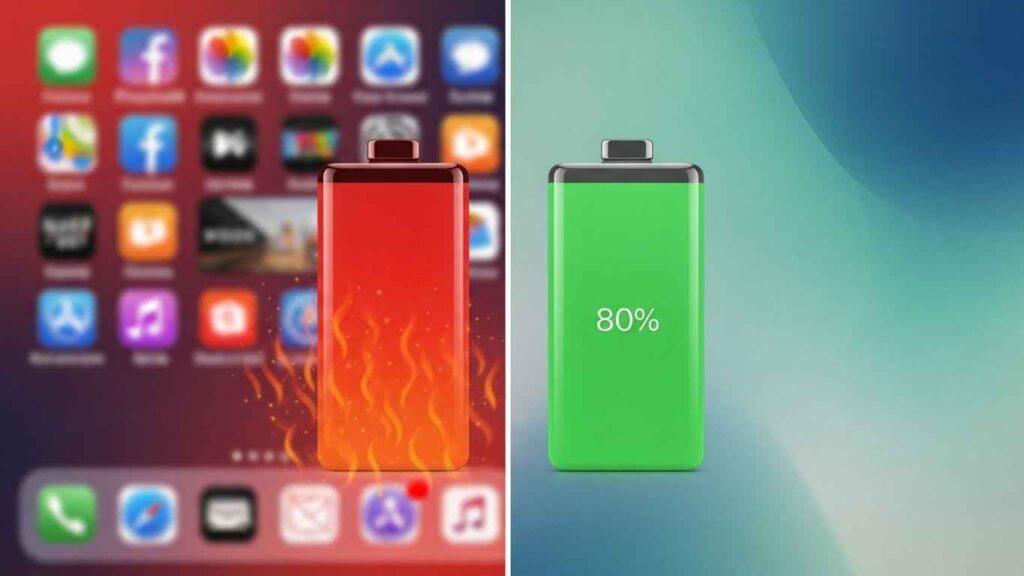
One of the biggest worries for any user is a dead battery. You probably think that charging your phone to 100% every night is the right thing to do. But this is actually a secret mistake. Keeping your battery at the very top or the very bottom wears it out faster.
Use the 80 Percent Rule
Your iPhone has a hidden setting to help with this. It is called Optimized Battery Charging. In 2026, newer models even let you set a hard limit at 80%. This stops the battery from getting too stressed. It keeps the “health” of your battery high for years instead of months.
Kill the Background Ghost Apps
Have you noticed your phone gets warm even when you are not using it? That is because apps are working in the background. They are “refreshing” to give you new data. You can turn this off for most apps. Go to your settings and look for Background App Refresh. Turning this off for things like games or shopping apps will save you hours of battery life.
Secrets of the Hidden Ecosystem
Apple calls it “Continuity,” but most people just call it magic when it works. The problem is that it often feels broken. You copy something on your phone, but it won’t paste on your Mac. This creates a lot of stress when you are trying to work fast.
The Universal Clipboard Fix
To make this work, both devices must be on the same Wi-Fi and have Bluetooth on. But the secret is your Apple ID. You must be signed into the same account on both. If it stops working, just sign out of iCloud on your Mac and sign back in. This “resets” the link and fixes the problem 90% of the time.
Using Your iPhone as a Pro Webcam
Did you know your iPhone camera is better than any webcam you can buy for your Mac? With a feature called Continuity Camera, your Mac can see your phone as a camera. You don’t need any wires. Just bring your phone near your Mac during a video call. It will pop up as an option. This makes you look professional without buying extra gear.
iCloud Storage Mistakes Everyone Makes
Nothing is more annoying than the “Storage Full” message. It always happens when you are about to take a great photo. Most people think they need to buy more space right away. But there is a smarter way to handle this.
The Shared Library Secret
If you live with family, do not pay for separate storage plans. You can use Family Sharing. This lets up to six people share one big bucket of space. It saves you money every month. Also, check your “Large Attachments” in the messages settings. Old videos sent in texts often take up more space than your actual photos.
Hidden Cloud Backups
Sometimes iCloud keeps backups of old phones you don’t even own anymore. These are like ghosts taking up space in your digital closet. Go to your iCloud settings and manage your account storage. If you see an old iPhone 12 backup and you now have an iPhone 16, delete the old one. You will get back gigabytes of space instantly.
Hidden Features Apple Doesn’t Promote
There are tools built into your phone that replace expensive apps. You just have to know where to find them. DigitalRGS Everything Apple focuses on these “invisible” tools to save you time.
The Back Tap Secret
Your iPhone has a secret button on the back. It is not a real button, but the glass can feel your touch. In the Accessibility settings, you can turn on “Back Tap.” You can set it so that a double-tap opens your camera or turns on your flashlight. This is a lifesaver when your hands are full.
Document Scanning in Notes
Stop downloading “Scanner” apps that show you ads. The Notes app has a pro-level scanner built-in. Just open a new note, tap the camera icon, and choose “Scan Documents.” it will automatically find the edges of the paper and turn it into a clean PDF. It is faster and safer for your privacy.
Making Your Mac Faster Without Buying a New One
Is your Mac starting to feel slow? Before you spend thousands on a new laptop, try these small changes. Most speed issues are caused by “clutter” that you cannot see.
Manage Your Startup Items
When you turn on your Mac, twenty apps might be trying to start at the same time. This makes the computer feel heavy. Go to System Settings and look for Login Items. Turn off everything that you don’t need the second you turn on the computer. Your Mac will breathe much easier.
The Power of Desktop Stacks
A messy desktop actually slows down your Mac’s brain. It has to remember where every single file is. Right-click on your desktop and choose “Use Stacks.” it will neatly group all your files into folders by kind. This looks better and helps your computer run smoother.
Privacy Settings You Should Change Right Now
Apple is good at privacy, but it still leaves some doors open. You should be the one in control of your data.
Check Your Location Privacy
Many apps ask to know where you are “Always.” Most apps only need to know “While Using.” Go to your Privacy settings and check the Location Services list. If a weather app knows where you are while you are sleeping, it is just wasting your battery and tracking you for no reason.
The Safety Check Feature
If you ever feel like someone has access to your data that shouldn’t, use “Safety Check.” it is a special tool in the privacy settings. It lets you see who has access to your location, your photos, and your notes. You can cut off all access with one tap if you need to.
How to Use Apple Intelligence Smarter
In 2026, AI is everywhere. But it can be confusing. You don’t need to be a scientist to use it.
Writing Tools for Everyone
If you are writing an email and it feels too messy, let the phone help. Highlight your text and look for “Writing Tools.” It can make your message sound more professional or shorter. It is like having a teacher in your pocket who never gets tired.
Clean Up Your Photos
We all have photos with strangers in the background. The new “Clean Up” tool in the Photos app lets you circle an object and make it disappear. It uses the phone’s brain to fill in the space. It is great for making your vacation photos look perfect without using Photoshop.
Solving the “Green Bubble” Stress
For a long time, texting people without iPhones was a mess. But things are changing.

RCS Messaging
Apple now supports RCS. This means when you text your friends who use Android, you get better features. You can see when they are typing. You can send high-quality videos. If this isn’t working for you, check your Message settings to make sure “RCS Messaging” is turned on. It takes away the frustration of blurry videos.
You May Also Like: Wehidomcid97 Exposed: Shocking Truth, Risks & What It Really Is
Conclusion: You are Now the Master
Using Apple products should feel like a joy, not a puzzle. We have covered how to save your battery, fix your sync issues, and find the hidden buttons that make life easier. You don’t need to know everything about computers to be a pro. You just need to know these secrets.
By using DigitalRGS Everything Apple tips, you have taken control of your tech. Your devices are now working for you, and your “Storage Full” days are over. Keep exploring and don’t be afraid to try new settings. Your iPhone and Mac are powerful tools, and now you have the keys to unlock them.
FAQs
Is DigitalRGS Everything Apple a part of Apple?
No. It is an independent guide. It is made by people who love tech and want to help others. It gives honest advice that Apple might not mention in their manuals.
Will these tips work on my old iPhone?
Most of them will. While some AI features need a newer phone, things like battery saving, document scanning, and iCloud management work on almost all devices from the last few years.
Do I have to pay for iCloud?
Everyone gets 5GB for free. If you use these tips to clean out old backups and large message attachments, you might not need to pay for a long time.
How do I stop my AirPods from switching to my Mac when I’m on my phone?
This is a common frustration. In your Bluetooth settings for your AirPods, look for “Connect to this iPhone.” Change it from “Automatically” to “When Last Connected.” This stops the “hopping” between devices.
Can I really use my phone as a ruler?
Yes! Look for the “Measure” app. It uses the camera to tell you how long something is. If you have a “Pro” phone, it is even more accurate because it uses a special laser called LiDAR.
Disclaimer:
DigitalRGS Everything Apple is an independent publication and has not been authorized, sponsored, or otherwise approved by Apple Inc. The information provided is for educational purposes only; please follow all tips at your own risk.