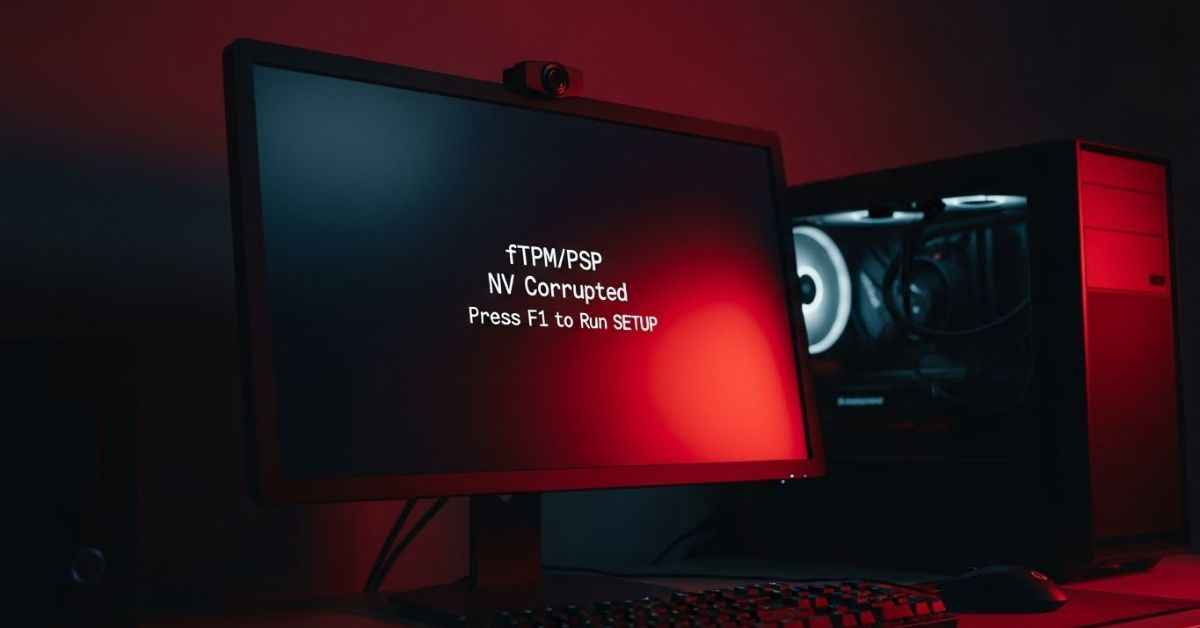
Seeing a black screen with white text about a “corrupted” system part is scary. You might feel a jolt of panic thinking your expensive computer is broken forever. This happens most often after you update your BIOS or put in a new AMD processor. It feels like your PC is holding your files hostage. You are likely worried about losing your photos, games, or work documents. This guide will help you understand exactly why this is happening and how to get back to your desktop safely.
Most people feel stuck because the screen asks you to pick between “Y” and “N,” but it does not explain the risks. You might be afraid that pressing the wrong button will erase your hard drive. This confusion is the biggest hurdle for every user. We will solve this by looking at how your security keys work. By the end of this page, that scary message will be gone, and you will feel like a pro.
Why Your PC Shows the fTPM Error
The message ftpm/psp nv corrupted is just your computer being very careful. Your AMD chip has a tiny security guard inside called the fTPM. This guard keeps secret keys that lock and unlock your Windows login and your files. When you change your CPU or update the software that runs your motherboard, the guard gets confused. It sees a change and thinks someone might be trying to steal your data.
This error is not a sign of a “broken” part in the way a cracked screen is. It is a logic “hiccup” where the stored security data does not match the new hardware setup. The “NV” in the error stands for Non-Volatile memory. This is just a fancy way of saying the chip’s long-term memory. When that memory looks “corrupted” to the system, it stops everything to ask you for permission before moving forward.
Understanding this helps lower the stress. Your hardware is likely perfectly fine. The system is just waiting for you to tell it whether to trust the new “guard” or keep looking for the old one. This is a safety feature, not a hardware failure.
The Big Choice Between Y and N
When you see this screen, your keyboard is your only tool. You have two main choices, and each one leads to a different result. Most users stare at these options for a long time because the warning about BitLocker sounds very serious. It is important to know which one fits your specific situation so you don’t make a mistake.
Pressing “N” is the “safe for now” choice. It tells the computer to ignore the new security setup and try to boot anyway. This is helpful if you just want to get into Windows one last time to save your files. However, if you choose “N,” the message will likely come back every single time you turn on the computer. It is like hitting the snooze button on an alarm clock; the problem is still there.
Pressing “Y” is the permanent fix. This tells the computer to “reset” the security guard and start fresh. It wipes the old, “corrupted” memory and creates new keys that match your current setup. This stops the error message from ever showing up again. But, as the screen warns, this can be dangerous if your files are encrypted.
Safety First Check Your BitLocker Status
Before you touch any key, you must think about BitLocker. BitLocker is a tool Windows uses to scramble your files so thieves can’t read them. It uses the fTPM keys to unscramble them when you turn on the PC. If you press “Y” and reset those keys, BitLocker will stay “locked.” You will then need a very long “Recovery Key” to get back in.
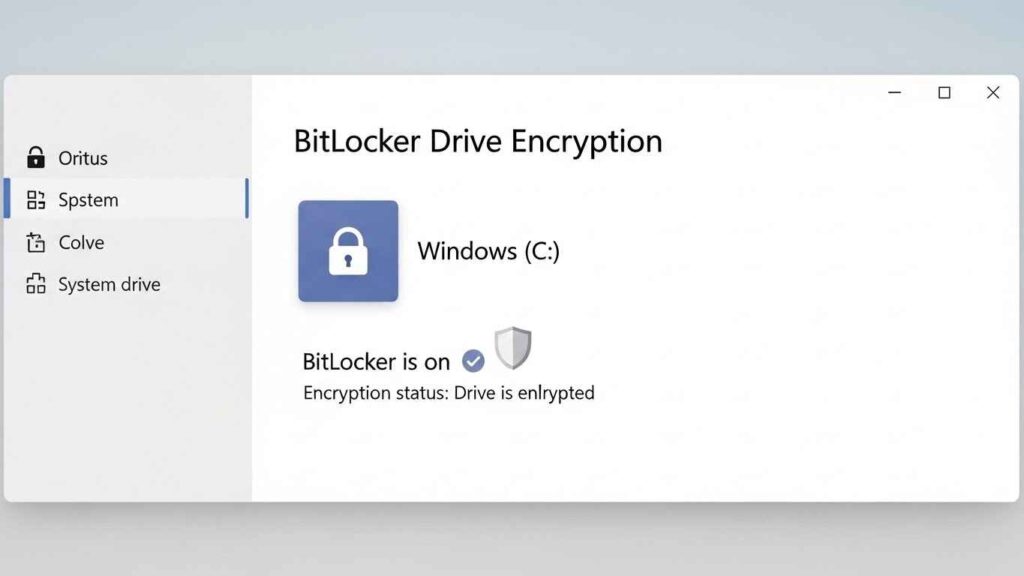
If you can get into Windows by pressing “N,” do that first. Once you are on your desktop, look at the bottom left search bar. Type the words “Manage BitLocker” and click the result. Look at your main drive, which is usually the C: drive. If it says “BitLocker off,” you can breathe a sigh of relief. This means your files are not scrambled, and pressing “Y” later will not lock you out.
If it says “BitLocker on,” you must find your recovery key before doing anything else. Most people have this key saved in their Microsoft Account online. You can check this by using another phone or computer to log into the Microsoft recovery site. Having this 48-digit number is like having a master key for your house. Without it, your files are stuck behind a door you cannot open.
How to Fix the Error if You Do Not Use BitLocker
For most home users, BitLocker is turned off by default. If you have checked and it is off, the fix is very simple. Restart your computer so you see the ftpm/psp nv corrupted screen again. This time, feel confident and press the “Y” key on your keyboard. Your computer might look like it is doing nothing for a few seconds, or it might restart on its own.
Once the PC restarts, the message should be gone forever. You might find that your PIN code or fingerprint login does not work the first time. This is normal because you just changed the security keys. Simply log in with your normal Microsoft password instead. Once you are in, you can go to the settings and set up your PIN or fingerprint again.
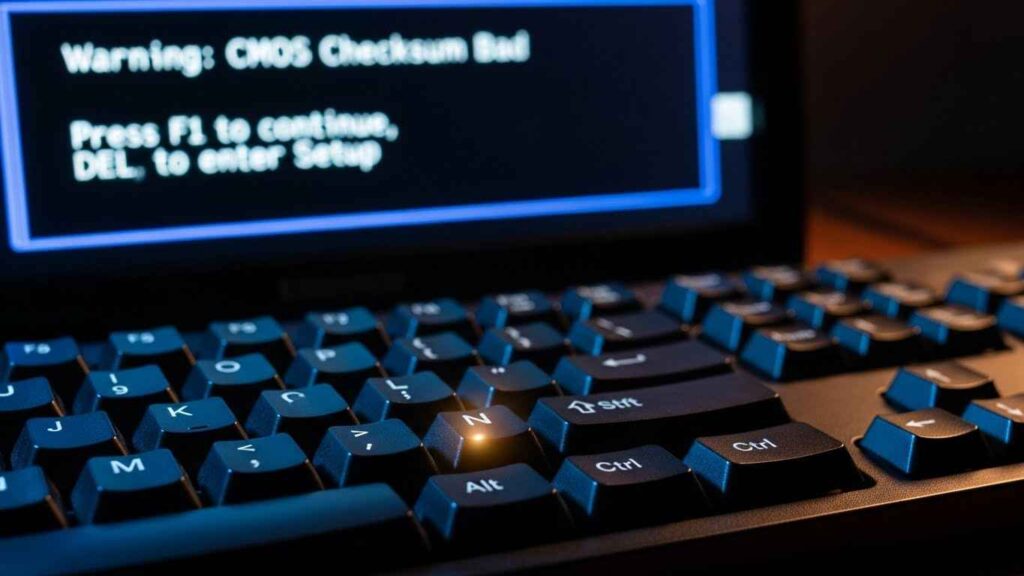
This process clears the “corrupted” memory and replaces it with a clean version. It is the most direct way to solve the problem. You are essentially telling the motherboard, “Yes, I know things changed, please make a new security profile for me.” This is the “Shocking Fix” because it only takes one second to press a button, but most people are too scared to do it.
Solving the Problem if You Are Locked Out
Sometimes, you might press “N” and find that Windows will not load at all. Or perhaps you don’t have your password and only used a PIN. If you are stuck in a loop where the computer won’t start, you need a different path. You will need to use a second computer to find your recovery key or a Windows installation USB drive.
If you have your 48-digit recovery key, go ahead and press “Y” at the error screen. When Windows tries to start, it will show a bright blue screen asking for that long number. Type it in carefully. Once you do, Windows will open. From there, you should turn BitLocker off in the settings, wait for it to finish “decrypting,” and then turn it back on if you want. This “refreshes” the lock so it works with your new CPU.
If you do not have the key and BitLocker is on, do not press “Y” yet. Try to find the old CPU you used to have. If you put the old chip back in, the “corrupted” message will go away because the keys will match again. This gives you a chance to get into Windows, save your photos to a USB stick, and turn off the encryption before you try the new CPU again.
Clearing the CMOS for a Deep Reset
If you press “Y” and the message still comes back, your motherboard might be “stuck.” This is rare, but it happens when the memory chip gets a bit of static or a glitch. You can fix this by doing a “CMOS Reset.” This is like giving your motherboard a fresh start by cutting its power for a minute.
First, turn off your PC and unplug the power cord from the wall. Open the side of your computer case. Look for a small, silver battery that looks like a coin. This is the CMOS battery. Carefully pop it out using a small screwdriver or your fingernail. Wait for about two minutes. While you wait, press the power button on the front of the PC a few times to drain any leftover electricity.
Put the battery back in and plug the PC back into the wall. When you turn it on, the motherboard will have “forgotten” its old, glitchy settings. It might show the fTPM message one last time. Press “Y,” and this time it should stick. This deep reset clears out any “ghost” data that was causing the error to repeat.
Updating BIOS to Prevent Future Errors
Motherboard makers like ASUS, MSI, and Gigabyte know about this fTPM problem. They often release software updates called “BIOS Updates” to fix it. If your computer keeps having strange stutters or security messages, checking for an update is a smart move. An outdated BIOS might not know how to talk to a newer AMD CPU correctly.
Go to the website of the company that made your motherboard or laptop. Look for the “Support” or “Drivers” section. Type in your model name. Look for a BIOS file that mentions “AMD AGESA” or “fTPM fixes.” Follow their instructions very carefully to install it. Usually, you put a file on a USB stick and click a button inside your BIOS menu.
A fresh BIOS version often has better “logic” for the fTPM guard. It makes the system less likely to panic when things change. It can also make your computer run faster and stay cooler. Just make sure you do not turn off the power while the update is running, as that can cause real damage.
When to Disable fTPM Entirely
Some users get so frustrated with the ftpm/psp nv corrupted message that they want to turn the feature off. You can do this in your BIOS settings. When you turn on the PC, tap the “Delete” or “F2” key repeatedly until a complex-looking menu appears. Look for “Advanced Settings” and then “Trusted Computing” or “CPU Configuration.”
Inside that menu, you will see a switch for “AMD fTPM” or “Security Device Support.” If you set this to “Disabled,” the message will stop forever. However, there is a catch. Windows 11 requires fTPM to be “On” to work properly. If you turn it off, you might stop getting Windows updates, or certain games like Valorant might refuse to launch.
Disabling it is a good way to test if your hardware is okay, but it is usually not a good long-term plan. It is better to “Reset” the keys by pressing “Y” so that you keep the security benefits without the annoying pop-up message. Only disable it if you are using an older version of Windows, like Windows 10, and you don’t care about the extra security.
Common Myths About this Error
You might read online that your CPU is “fried” or your motherboard is “dead.” This is almost never true. Because the word “corrupted” is in the message, people assume their hardware is rotting or broken. In the world of computers, “corrupted” just means the data doesn’t make sense anymore. It is a software problem, not a physical one.
Another myth is that you must reinstall Windows to fix it. This is a very “loud” solution to a “quiet” problem. Reinstalling Windows is like buying a new car because your seatbelt got stuck. You should only wipe your hard drive as a last resort. Following the “Y” key reset or the CMOS battery trick solves the problem for 99% of people without losing a single file.
Lastly, some think this only happens to “cheap” computers. That is false. This happens to the most expensive gaming PCs and professional workstations. It is simply a part of how the AMD security system works. Knowing this should help you feel less like you “did something wrong” and more like you are just performing standard maintenance.
Step-by-Step Recovery Summary
To make things easy, let’s look at the fastest path to a fix. If you are standing in front of your computer right now, follow these steps in order. This will keep your data safe and get you back to work or play as fast as possible.
- Press N: Try to get into Windows first.
- Check BitLocker: Type “Manage BitLocker” in the search bar. If it is “Off,” you are safe.
- Find your Key: If BitLocker is “On,” find your recovery key in your Microsoft account.
- Restart and Press Y: Go back to the error screen and hit “Y.”
- Re-do Login: Set up your PIN or Fingerprint again if they stopped working.
If these steps do not work, then move on to the CMOS battery or BIOS update. Most people will be finished by step 4. It is a quick process once you lose the fear of the word “corrupted.” Your computer is built to handle this, and you have the power to fix it.
You May Also Like: How to Cancel Game Mopfell78 Fast – Shocking Fix Guide
Conclusion: Peace of Mind Restored
The ftpm/psp nv corrupted error is a loud bark from a dog that doesn’t bite. It is a security warning designed to protect you, even though it feels like a hurdle. By understanding that the fTPM is just a “security guard” that got confused by a hardware change, you can handle the situation with calm. You now know that “Y” is your friend if your files aren’t locked, and “N” is your temporary escape.
You have the tools to check your encryption, find your keys, and even reset your motherboard if needed. You don’t need to pay a repair shop hundreds of dollars for a fix that takes one keypress. Your files are safe, your hardware is strong, and you are back in control. Enjoy your computer without the annoying black screen getting in your way.
FAQs
What does fTPM/PSP NV corrupted mean?
It means the security keys stored in your AMD processor don’t match the record on your motherboard. This usually happens after a BIOS update or a new CPU. It is a safety check to make sure your data hasn’t been tampered with.
Will I lose my files if I press Y?
You will not lose your files unless you have BitLocker drive encryption turned on. If BitLocker is on and you don’t have your recovery key, you will be locked out. If BitLocker is off, your files are 100% safe.
Why does the error keep coming back even after I press N?
Pressing “N” tells the computer to skip the fix for one boot cycle. Since the keys are still mismatched, the computer asks you again the next time you turn it on. You must press “Y” to make the message go away permanently.
How do I find my BitLocker recovery key?
Most people can find it by logging into their Microsoft account on a different device. Search for “Microsoft BitLocker Recovery Key” in a web browser. It is a 48-digit number divided into six groups.
Can this error happen on an Intel CPU?
Intel has its own version called PTT, but it rarely shows this specific fTPM/PSP NV corrupted message. This specific wording is almost always found on AMD-based systems.
Do I need to buy a new motherboard?
No. This is a software and settings issue, not a hardware failure. Even if the fTPM chip was actually broken (which is very rare), you could simply use a “Discrete TPM” module or change your settings to bypass it.
Disclaimer
This article is for informational purposes only. We are not affiliated with any hardware manufacturer or software vendor mentioned. Always follow official documentation or consult a professional before making system changes.