
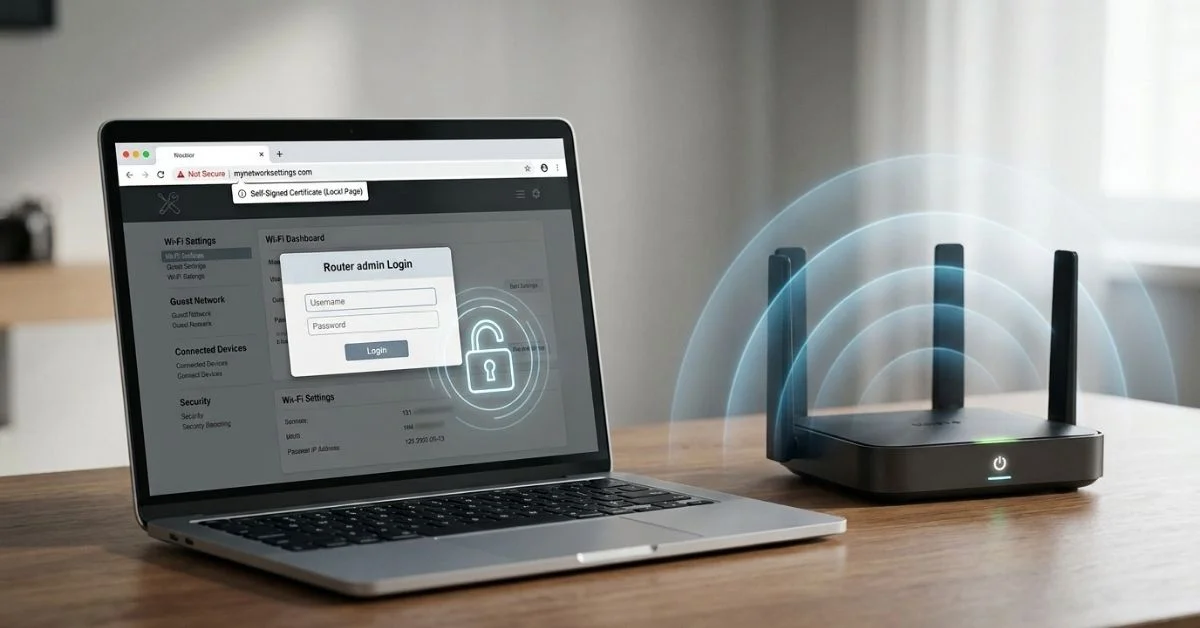
You can open your home router settings using mynetworksettings com. Typing this web address into your web browser opens your router’s setup screen. From there, you can change your Wi-Fi name, update your password, or turn on a guest network.
This guide shows you how to log in, find your password, handle safety warnings, and manage your home Wi-Fi safely.
What Is mynetworksettings com?
mynetworksettings com is a local web address used to open the settings page for home routers, mostly those from Verizon.
Unlike normal websites like news pages or shopping sites, this address does not live on the internet. It connects directly to the router box inside your home.
[ Your Phone/PC ] ──> [ Home Wi-Fi Network ] ──> [ Router Box ] ──> [ Router Settings Page ]
When you type this address, your router catches it and opens its own main setup menu. If your phone or computer is not connected to your home Wi-Fi, the page will not open.
Is mynetworksettings com a Public Website?
No, it is not a normal website. You cannot open it using phone data when you are away from home. It only works when your device connects directly to your home Wi-Fi or connects using a network cable.
Who Uses mynetworksettings com?
This address is made for people who use Verizon routers. It lets you change your router settings at home without needing the internet.
How to Access mynetworksettings com and Log In
Follow these five simple steps to open your router’s setup page:
- Connect to your home network: Make sure your computer or phone is connected to your home Wi-Fi or plugged in with a cable.
- Open a web browser: Launch Chrome, Safari, Edge, or Firefox.
- Enter the address: Type
mynetworksettings comdirectly into the address bar at the very top of the browser, not the search box. - Skip the safety warning: If your browser shows a safety warning page, click Advanced and choose to keep going.
- Type your password: Type the router admin password printed on the sticker on your router box.
30-Second Login Checklist
- Connected to home Wi-Fi?
- Address typed in the top address bar?
- Admin password (not Wi-Fi password) ready?
┌─────────────────────────────────────────────────────────┐
│  🌐 mynetworksettings com                               │
└─────────────────────────────────────────────────────────┘
   ▲ Make sure to type directly into the browser address bar
How to Log In on iPhone or Android
To log in using a phone:
- Connect your phone to your home Wi-Fi.
- Turn off mobile data for a moment so your phone relies only on home Wi-Fi.
- Open Safari or Chrome.
- Type
mynetworksettings comin the top address bar and tap Go. Do not tap suggested search engine results.
Step 1: Turn Off Mobile Data   Step 2: Open Web Browser   Step 3: Type Address
┌───────────────────────────┐   ┌──────────────────────┐   ┌─────────────────────────┐
│ Mobile Data: [ OFF ]      │ ──> │ Chrome / Safari      │ ──> │ mynetworksettings com   │
└───────────────────────────┘   └──────────────────────┘   └─────────────────────────┘
How to Log In on a Computer
On a desktop or laptop, connect to your home Wi-Fi or plug a network cable directly from your computer into the back of your router box. Open your web browser and type the address into the top bar to open the login box.
What Username and Password Should You Use?
Many people mix up their Wi-Fi password with their router admin password. Your Wi-Fi password lets your devices connect to your Wi-Fi. Your admin password unlocks the router’s main settings page.
| Name | What It Is For | Where to Find It |
| Wi-Fi Password | Connecting phones, TVs, and laptops to Wi-Fi | Router sticker or provider app |
| Admin Password | Opening the router setup screen | Router sticker (labeled “Router Password” or “Admin Password”) |
Look for the sticker on the back or bottom of your router box.
┌──────────────────────────────────────────────────────────┐
│  VERIZON GATEWAY                                         │
│  Wi-Fi Network Name (SSID): MyHomeNetwork                │
│  Wi-Fi Password:  [ SecretWi-FiKey123 ]                  │
│                                                          │
│  ADMIN CREDENTIALS                                       │
│  Admin Username:  admin                                  │
│  Admin Password:  [ 8xK9-mP2L-XXXX ]  <-- USE THIS ONE   │
└──────────────────────────────────────────────────────────┘
What If the Admin Password Was Changed and Forgotten?
If you changed the default admin password and forgot it, you must reset your router to its original factory settings.
Find the small reset pinhole on the back of your router. Push and hold the button inside for 10 to 15 seconds using a paperclip. This resets all router settings back to the original names and passwords printed on the sticker.
Why Does mynetworksettings com Say “Not Secure”?
Web browsers show a “Not Secure” warning because local router pages use basic HTTP instead of encrypted HTTPS, so they do not have a public security certificate.
- HTTP: Sends data normally across your local home network.
- HTTPS: Locks and scrambles data using security certificates from trusted internet companies.
Since your router is just a box inside your home, it does not use a public certificate. The warning does not mean your router is hacked. It just means the page is local to your house. Always make sure you are connected to your own Wi-Fi before typing your password.
⚠️ Your connection is not private
Attackers might be trying to steal your information from mynetworksettings com...
[ Advanced ]  <-- Click here to show the option to keep going
   └── Click "Proceed to local site (unsafe)"
Is It Safe to Keep Going Past the Warning?
Yes, it is completely safe to keep going as long as your device is connected directly to your home Wi-Fi. Click Advanced and select Proceed to open the login screen.

What Can You Do After Logging In?
Once you log into the setup dashboard, you can change many different network settings:
| Task | What It Changes | Warning / Note |
| Change Wi-Fi Name | Changes your network name (SSID) | Connected devices will disconnect and need to reconnect |
| Change Wi-Fi Password | Changes your Wi-Fi password | You must type the new password on all your devices |
| Set Up Guest Wi-Fi | Creates a separate network for visitors | Keeps your main Wi-Fi password private |
| Manage Connected Devices | Shows and controls connected devices | Do not block devices unless you are sure what they are |
| Set Parental Controls | Sets time limits or blocks bad sites | Options depend on your router model |
| Port Forwarding | Directs incoming traffic to specific devices | Only turn this on if needed for games or special apps |
| Reboot Router | Restarts the router system | Temporarily turns off your internet for a few minutes |
| Factory Reset | Wipes all settings back to default | Erases your custom Wi-Fi names, passwords, and setups |
┌─────────────────────────────────────────────────────────────────────────┐
│ ROUTER ADMIN DASHBOARD                                                  │
├───────────────────┬─────────────────────────────────────────────────────┤
│ • Status          │ Network Status: Online                              │
│ • Wi-Fi Settings  │ Main Network: Connected (12 Devices)                │
│ • Guest Network   │ Guest Network: Disabled                             │
│ • Security        │ Firmware: Up to date                                │
│ • System Tools    │ [ Reboot Router ]    [ Factory Reset ]              │
└───────────────────┴─────────────────────────────────────────────────────┘
mynetworksettings com vs 192.168.1.1 vs the Provider App
You can open your router settings in more than one way. You can type the web address, type a direct IP number, or use a mobile phone app.
| Method | Best For | Needs Home Wi-Fi? | When to Use |
| mynetworksettings com | Opening router settings | Yes | First choice if your router supports it |
| 192.168.1.1 | Direct IP address entry | Yes | Great backup if the web address will not open |
| Provider App | Easy guided setup | Usually No (can work via account) | Best for easy tasks like testing speed or changing Wi-Fi |
Note that 192.168.1.1 might not work on every setup. While many Verizon routers use this default number, your router’s actual IP number could be different, such as 192.168.0.1 or 192.168.1.254.
Use this simple chart to choose the right path:
Want router settings?
        │
        ▼
Try local web address (mynetworksettings com)
        │
        ├─► Works? ──> Log in and change settings
        │
        └─► Doesn't work? ──> Try router IP number (192.168.1.1)
                                      │
                                      └─► Still stuck? ──> Use official provider app or support
How to Fix It When mynetworksettings com Won’t Load
If the page refuses to open, follow these troubleshooting steps in order:
- Check your Wi-Fi: Make sure your device connects to your main home Wi-Fi, not a guest Wi-Fi or public Wi-Fi.
- Turn off mobile data and VPNs: Mobile data uses cell towers, and VPNs scramble your path. Both block your phone from finding local router pages.
- Check your spelling: Make sure you typed the web address into the top browser bar without typos or
www. - Try the router IP number: Type
[http://192.168.1.1](http://192.168.1.1)directly into your browser address bar. - Try another browser: If Chrome fails, open Edge, Safari, or Firefox.
- Clear browser history and site data: Saved browser data can sometimes freeze pages.
- Restart your router: Unplug the router power cable, wait 30 seconds, and plug it back in.
- Test on another device: Try opening the page on a computer or another phone.
- Find your real router IP number: On a Windows PC, open Command Prompt and type
ipconfigto see your Default Gateway. On Mac or iPhone, check your Wi-Fi connection details. - Use provider support or app: If local addresses still will not load, open your provider’s mobile app to manage your router.
Quick Fix Guide
| Problem | Likely Reason | First Easy Fix |
| Page times out | Connected to wrong network or using phone data | Connect to home Wi-Fi and turn off mobile data |
| Search results open | Typed address into search box instead of top address bar | Type the full address directly in the top address bar |
| Login rejected | Wrong password entered | Check the router sticker for the Admin Password |
| Works on one device only | Browser issue or blocked extension | Try another browser or clear site data |
| IP works but domain doesn’t | Local domain name reading error | Use the direct IP number instead |
| Nothing works | Router freeze or network error | Restart router or check provider tools |
What If 192.168.1.1 Works but mynetworksettings com Does Not?
If typing the IP number opens your setup page but the web address shows an error, your router is having trouble converting the name to a number.
mynetworksettings com is just a simple shortcut name. Your router must catch this name and direct it to its internal IP number. If that name link fails, using the direct IP number 192.168.1.1 works just as well. You do not need to change any advanced settings. Just bookmark the working IP number in your browser.
What If Neither Address Works?
When neither address opens, your device cannot communicate with your router box.
- Check your network cable if your computer uses one.
- Disconnect from Wi-Fi and connect again.
- Restart your router to clear temporary system errors.
- Avoid resetting your router to factory settings right away unless you are ready to set up your Wi-Fi network from scratch.
- Call your service provider or use their official phone app if you still cannot open the page.
Common mynetworksettings com Login Mistakes to Avoid
Most router access issues come from small mistakes. Avoid these common problems:
- Leaving mobile data on: Mobile data makes your phone search the public internet instead of your home router.
- Using guest Wi-Fi: Guest Wi-Fi networks block access to router setup pages for safety.
- Searching for the web address: Searching for the address on Google or Bing takes you to search results instead of your router page.
- Using your Wi-Fi password: Typing your daily Wi-Fi password into the admin box will not work.
- Typing
https://by mistake: Addinghttps://can cause loading errors if your router page uses standardhttp://. - Assuming all routers use 192.168.1.1: Default router IP numbers can vary depending on your router model.
- Resetting the router too fast: Resetting erases your custom Wi-Fi names, passwords, and connected device rules.
- Clicking lookalike websites: Typing your passwords into fake websites found in search engines can put your privacy at risk.
⚠️ Before You Reset
Resetting your router to factory defaults erases all custom Wi-Fi settings. Every phone, smart TV, and tablet in your house will lose Wi-Fi until you set up the router again using the details on the sticker.
Is It Possible to Change the Local Router Address or Domain?
Some users wonder if they can change their router’s local web address or default IP number.
Local domain names are permanently built into your router’s software by the manufacturer. You cannot change the mynetworksettings com name string.
While some routers let you change their internal IP number (like changing 192.168.1.1 to 10.0.0.1), doing so requires a good understanding of home network setups. Changing these IP settings incorrectly can cause all your devices to lose their internet access.
If you make a mistake while changing internal addresses, you may have to do a full factory reset to get things working again. For most home users, leaving the default address settings as they are is the safest choice.

Final 30-Second Checklist
Before leaving this guide, check these simple items to make sure you can log in quickly:
- Connected to your primary home network?
- Typed the address directly into the top browser address bar?
- Tried using the IP number
192.168.1.1if the web address fails? - Entered the Admin Password instead of your Wi-Fi password?
- Turned off mobile data or VPN connections on your phone?
- Restarted your router box if the setup page freezes?
- Avoided entering account details on fake lookalike websites?
Quick Answers to Common Questions About mynetworksettings com
What is mynetworksettings com?
It is a local web address used to open the settings control panel for home routers.
How do I access mynetworksettings com?
Connect your computer or phone to your home Wi-Fi network, open a browser, and type mynetworksettings com into the top address bar.
What password do I use for mynetworksettings com?
Use the router Admin Password printed on the physical sticker on your router box, not your daily Wi-Fi password.
Why does mynetworksettings com say “Not Secure”?
Browsers label local router pages as “Not Secure” because they do not carry public security certificates. It is safe to keep going on your home network.
Is mynetworksettings com safe to use?
Yes, it is completely safe as long as you are connected to your own home Wi-Fi network and type the address directly into the address bar.
Why won’t mynetworksettings com load?
This usually happens because your phone is using mobile data, connected to the wrong Wi-Fi network, or searching for the address online.
Can I use 192.168.1.1 instead?
Yes, 192.168.1.1 is the direct IP number for many routers and works as a great backup.
Can I access mynetworksettings com from an iPhone or Android phone?
Yes, connect your phone to home Wi-Fi, turn off mobile data, open Safari or Chrome, and type the web address into the top bar.
What can I change after logging into the router?
You can change your Wi-Fi name and password, turn on a guest network, set parental controls, restart the device, or see connected devices.
What should I do if I forgot my router admin password?
Press and hold the small reset button on the back of your router box for 10 to 15 seconds to restore factory default settings.
You Could Also Like:
NewsFlashBurst Com: What It Is, Categories, Legitimacy & Guest Posts
tellculvers com survey: How to Take the Culver’s Survey and Get the Reward
Disclaimer:
This article is for informational and educational purposes only and does not replace official router or internet service guidance. Settings and steps may vary by device and provider. Some images may be AI-generated for illustrative purposes. All copyrights and trademarks belong to their respective owners.

Victor Rennard is a multi-niche writer for BaddieHubMagazine.com, creating clear and engaging articles across lifestyle, trends, tech, entertainment, and general guides. With a simple, helpful writing style, Victor aims to give readers quick insights and reliable information on topics that matter.


