
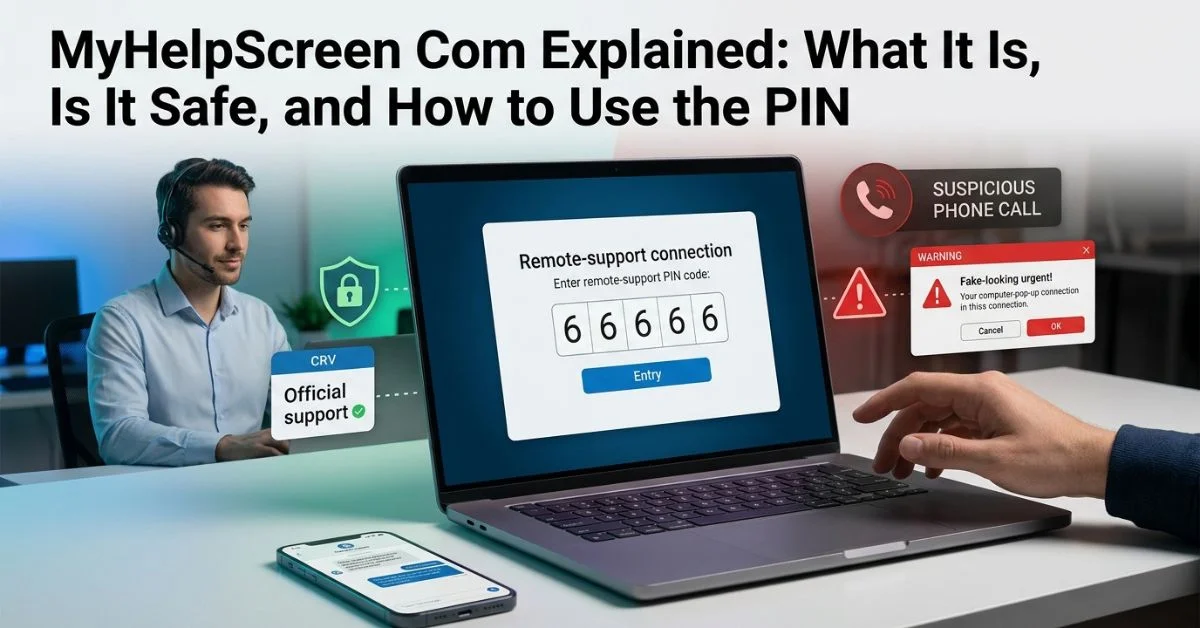
Quick Answer
- What it is: MyHelpScreen com is a temporary online support website made by a company called ScreenMeet.
- What the PIN does: A 6-digit or 9-digit number connects your web browser directly to a real support worker.
- When to use it: Enter a code only if you called or messaged a trusted support team first and they asked you to join.
What Is MyHelpScreen Com?
MyHelpScreen com is a website used to start short, one-time computer help sessions. When you ask a customer support team for help, a helper might tell you to go to this web address. The site links your web browser to the support team so they can find and fix problems on your computer or phone.
ScreenMeet is the main business software company that built and runs this website. You do not need to set up a full account or password to use it. Instead, you just type in a short, single-use code given to you by your support helper.
This remote help process uses two main parts:
- The Web Page: The site where you type your PIN code to find your support helper.
- The Helper App: A small, temporary program that downloads to your device after you enter the code. It makes the safe connection needed to share your screen.
Is MyHelpScreen Com Safe and Real?
MyHelpScreen com is a real, safe help website used by large companies. However, just because a website is safe does not mean every person sending you there is honest. Online scammers often use real tools to trick people.
Always double-check who you are talking to before typing a PIN or downloading any file.
Checklist Before You Enter a PIN
- Did you call or message the company first?
- Do you have an open help ticket or case number?
- Can you check who the worker is through an official phone number or chat?
- Did you get the web link from an official company page?
Warning Signs of Tech Support Scams Be careful if an unexpected caller says your computer has a virus or an error. Real companies almost never call you out of nowhere to ask for access to your computer.
Hang up or disconnect right away if a caller asks you to:
- Tell them your passwords, PINs, or login security codes.
- Log into online bank accounts or give credit card numbers.
- Buy gift cards, send bank wires, or send digital money like Bitcoin.
- Open private personal files, tax papers, or health records.
| Feature | Real Support Session | Scam Warning Sign |
|---|---|---|
| How it Starts | You contacted the business first for help. | You got a phone call, text, or pop-up warning you didn’t ask for. |
| Rush Factor | The helper works calmly and takes their time. | The caller tries to scare you or pushes you to move fast. |
| Payment | Uses regular, official payment systems. | Asks for gift cards, wire transfers, or online coin money. |
| Privacy | Tells you to hide personal info from view. | Demands to see your bank app or secret passwords. |
How to Use the MyHelpScreen PIN Code
Connecting with a support helper takes just a few easy steps.
Get the Support PIN From Your Helper
Your technician will create a unique code made of numbers. They will read this number to you over the phone or send it in an official chat box.
Enter the PIN on MyHelpScreen Com
Open your web browser and go to myhelpscreen com. Type the number code into the box on the screen, then click the button to join.
Download and Start the Support App
After you type your code, your browser will ask you to download a small helper program.
- Download: Save the temporary file when your browser asks.
- Open: Click the downloaded file at the bottom of your browser or open it from your Downloads folder.
- Connect: The app will open and connect to your helper automatically.
Computer systems like Windows and Mac may show a safety warning asking if you trust the file. Click allow or run so the app can open.
Give Permission and Start the Help Session
When the app opens, a small pop-up box will ask if it can share your screen. Some repairs also need mouse and keyboard control. Read every box carefully before clicking allow. You can stop sharing at any time during the call.

What Can the Support Helper See or Do?
Knowing what the helper can see helps you keep your private info safe.
- Screen Viewing: The helper can see your open screen as you use it. This lets them read error messages and check settings.
- Remote Control: If you give them control permission, the helper can move your mouse pointer and type on your keyboard.
Your helper can only do things you allowed them to do. They cannot see files on extra screens or look at hidden windows unless they are visible on the shared screen.
Before you share your screen, close any private web pages. Hide personal photos, bank accounts, private messages, and sensitive files. If you need to type a password, ask the worker to pause screen sharing first.
| What the Helper May Need to Do | What You Should Never Share |
|---|---|
| See computer error messages | Account passwords or PIN codes |
| Fix device or system settings | Bank account numbers or card details |
| Install needed software updates | Private family photos or personal papers |
| Run official system tests | Social Security numbers or ID details |
How to End a MyHelpScreen Help Session
You are always in control of the connection and can end it at any time.
- Click Disconnect: Look for the small ScreenMeet bar on your screen. Click the button that says Disconnect or Stop Sharing.
- Close the App: Close the helper app window on your computer screen.
- Check Connection Status: Make sure the screen-sharing icon is gone from your screen taskbar.
When you close the helper app, the technician loses all access to your device. The temporary file turns off and cannot reconnect on its own.
MyHelpScreen Com Not Working? Easy Fixes for Common Issues
If your session will not connect, use this table to find and fix the problem.
| Problem | Likely Reason | What to Try |
|---|---|---|
| PIN is rejected | Wrong, old, or bad code | Check the numbers again and ask your helper for a new PIN. |
| Session will not start | Small connection glitch | Refresh the web page and try entering the code again. |
| Download does not start | Browser is blocking pop-ups | Look at your download bar and click allow for this site. |
| Support app will not open | Security program blocked it | Open your Downloads folder, right-click the file, and select run. |
| Page will not load | Network or firewall block | Try a different internet connection or ask your IT team for help. |
What If the PIN Code Expires?
PIN codes stop working after a short time so nobody else can use them later. If your code stops working, do not try to guess it. Just ask your helper for a fresh PIN.
What If the Download Fails to Open?
If the app downloads but will not open, check your computer security settings. On Windows, click More Info on the pop-up screen, then click Run Anyway. On a Mac, open System Settings, click Privacy & Security, and choose Allow Anyway next to the blocked file.
When Should You Call Your Helper?
Talk directly to your support worker if the connection keeps failing. They can check if your code is active, see if the site is working, or send you a new link.
MyHelpScreen Com vs. Other Remote Support Tools
MyHelpScreen com is designed only for short, live support calls where you are present. It is different from permanent remote software in a few ways.
| Feature | MyHelpScreen Com / ScreenMeet | Regular Remote-Access Software |
|---|---|---|
| Main Use | Quick, one-time customer support. | Long-term computer setup and control. |
| How You Join | Typing a short PIN on a web page. | Saved passwords or permanent user accounts. |
| Installation | Small helper app that runs only during the call. | Large software programs kept on the computer forever. |
| User Control | Needs your okay for every new session. | Can connect in the background without asking you first. |

MyHelpScreen Com for IT Managers
Office networks and computer safety tools can sometimes block remote support apps. Network managers may need to adjust safety settings to let ScreenMeet run smoothly.
For IT Admins
- Network Ports: Connections use standard web traffic over Port 443.
- Traffic Scans: Deep network scans and TLS/SSL decryption can break secure connections.
- Rules and Setup: Check current ScreenMeet guide pages for allowed web addresses and IP groups before changing firewall rules.
- Session Logs: Managers can check connection history and details inside system tools like Salesforce or ServiceNow.
Frequently Asked Questions About MyHelpScreen Com
What is MyHelpScreen Com?
It is a temporary help website powered by ScreenMeet that connects you to tech support workers.
Is MyHelpScreen Com safe?
The website itself is safe, but you should only use it with support workers you reached out to yourself.
Is MyHelpScreen connected to ScreenMeet?
Yes. ScreenMeet makes the software that runs the MyHelpScreen website.
How do I enter a MyHelpScreen PIN?
Go to myhelpscreen com, type the number code from your technician into the box, and click submit.
What happens after I click Download Support App?
Your computer downloads a small helper file. Opening that file connects you to your support worker.
Can a support helper see my screen?
Yes, but only after you click allow on the screen-sharing prompt box.
Can a support helper control my computer?
Only if you click allow when the app asks for control permission.
How do I end a MyHelpScreen session?
Click the disconnect button on the helper bar, then close the app window.
Why is my MyHelpScreen PIN not working?
The code may have expired or was typed incorrectly. Ask your helper for a new PIN.
What should I do if MyHelpScreen will not load?
Check your internet, try a different web browser, or pause strict ad blockers.
Is it safe to use MyHelpScreen if an unexpected caller gave me the code?
No. Surprise calls offering to fix your computer are almost always tech support scams.
What should I do if my company network blocks MyHelpScreen?
Ask your network administrator to allow traffic to ScreenMeet web addresses.
You Could Also Like:
WiseStudySpot .com Explained: Website, Features, Safety & Review
Dhilisatta. com Explained: Website, Safety, Content & SEO Review (2026)
Disclaimer:
This article is for informational and educational purposes only. It is not professional, technical, legal, or security advice. Always verify a support agent before giving remote access. Some images may be AI-generated for illustration. All copyrights, trademarks, and brand names belong to their respective owners.

Victor Rennard is a multi-niche writer for BaddieHubMagazine.com, creating clear and engaging articles across lifestyle, trends, tech, entertainment, and general guides. With a simple, helpful writing style, Victor aims to give readers quick insights and reliable information on topics that matter.


